
Protecting your digital assets in 2027 requires active monitoring of your account activity and connected devices. Many security risks arise not from major system breaches, but from overlooked login sessions, such as leaving an account signed in on an unattended browser, using devices exposed to malicious extensions, or failing to remove access from old devices. BingX helps users manage these risks through device management features, login history tracking, and automated security monitoring.
By regularly reviewing active sessions and managing device permissions, users can reduce the risk of unauthorized access and strengthen account protection. This guide explains how to review login history, manage authorized devices, respond to abnormal login alerts, and maintain stronger security across the devices used to access your BingX account.
How Does Limiting Device Access Strengthen BingX Account Security?
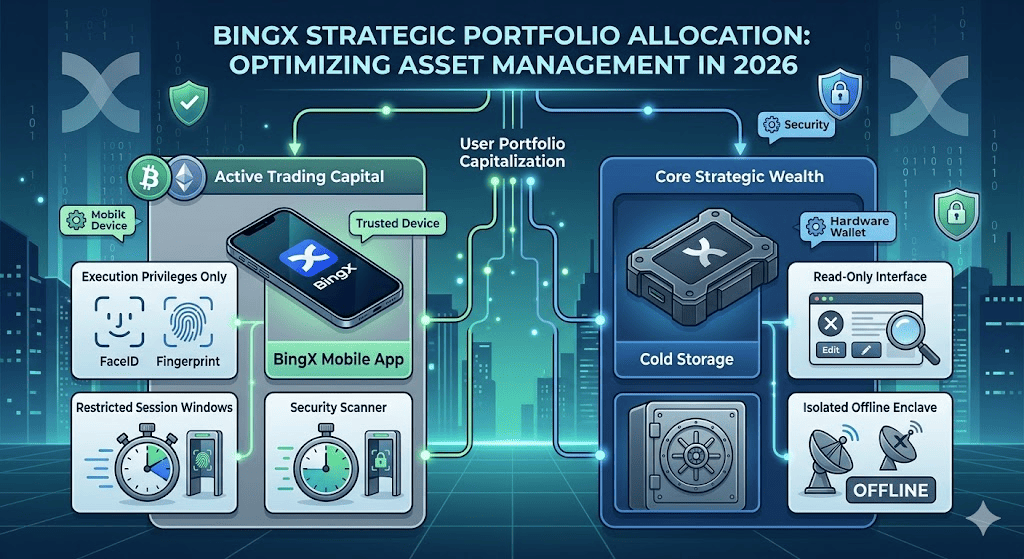
Every device, browser session, or third-party application connected to a BingX account represents a potential point of unauthorized access. The Principle of Least Privilege (PoLP) is a fundamental cybersecurity practice that limits access and permissions to only what is necessary for a specific task. For trading accounts, this means restricting device access, browser sessions, and API permissions to reduce security risks. Even if one device or account connection is compromised, limiting its permissions can help prevent further unauthorized actions.
Applying this principle on BingX involves separating everyday trading activities from unnecessary account access. Users can designate a primary mobile device through Trusted Device Authorization to approve or reject certain sensitive actions initiated from other devices. Secondary devices and browser sessions should be reviewed regularly, while unused connections should be removed and third-party API permissions limited to their intended functions.
How to Manage Your BingX Digital Footprint: Login Sessions and Device Permissions
Minimizing your digital footprint requires evaluating how different devices, browser sessions, and third-party applications access your BingX account. Each access method carries different security risks and requires appropriate protection.
|
Access Environment |
Account Access |
Risk Exposure |
Recommended Protection |
|
BingX Mobile App |
Full Execution & Admin |
Low (secured device) |
Passkeys, biometrics, Trusted Device Authorization |
|
Desktop Web (Home PC) |
Spot / Futures Execution |
Medium (saved sessions) |
Unique password, 2FA, regular logouts |
|
Public / Shared Device |
Temporary View / Trade |
High (credential theft) |
Avoid access; log out completely if unavoidable |
|
Third-Party API Integrations |
Programmatic Trading |
Critical (key leaks) |
IP whitelisting, limited permissions, remove unused keys |
Phase 1: Conduct a Routine Device and Session Audit
To reduce unnecessary exposure, regularly review which devices and sessions can still access your BingX account. This helps you identify unfamiliar activity, remove old devices, and keep your account access limited to the devices you actually use.
Step-by-Step Audit Workflow on BingX Web
- Log in to BingX: Visit the official BingX Website, navigate to the upper-right corner, and click your Avatar Icon to access your account settings.
- Open Account & Security: Select Account & Security from the dropdown menu and scroll down to the Device Management or Login History module to review your account's connected devices and login activity.
- Review authorized devices: Examine the complete list of authorized systems, paying close attention to the Device Type, Browser Profile, IP Address Location, and Last Active Timestamp. Look for unfamiliar devices, unexpected login locations, or sessions that should no longer be active.
- Remove unfamiliar connections: If you spot an unrecognized connection or an old smartphone you no longer use, immediately click the Delete or Terminate Session button located on the right side of the row to remove the device or end the session.
Note: Terminating an active session or deleting an authorized device removes that access and may require additional security verification before the device can reconnect. If you suspect your login credentials have been compromised, review your password and multi-factor authentication settings as well.
Phase 2: Recognize and Respond to Abnormal Login Alerts on BingX
BingX's automated risk monitoring system detects unusual account activity and may require additional verification or temporarily restrict access when potential threats are identified. Security notifications help users recognize suspicious login attempts and respond promptly.
Common Warning Signs of Abnormal Login Activity
- Geographic Discrepancies: Logins from unfamiliar countries, IP addresses, or commercial VPN servers may indicate unusual activity.
- Hardware Modifications: Access through an unfamiliar browser, updated operating system, or unrecognized mobile device may require additional verification.
- Unsafe Network Architecture: Using unsecured public Wi-Fi networks can increase the risk of credential theft and unauthorized access.
Immediate Response Strategy
If you receive an unexpected device login or withdrawal notification, review your account through the official BingX website or app. If Trusted Device Authorization is enabled, tap "Reject" on your trusted device for any withdrawal or API request you did not initiate.
If unauthorized access is suspected, use Lock Account or contact BingX Support immediately. Account locking suspends logins, trading, withdrawals, and security verification requests until access is restored through official support. For other security restrictions, use the Security Limit Helper where applicable.
Phase 3: Strengthen Your BingX Device and Network Security
Maintaining a minimal digital footprint means reducing common security risks associated with everyday browsing and network usage:
- Enforce Active Log-outs: Avoid remaining continuously logged in to your BingX account on desktop browsers, especially when using shared devices. Make it a habit to log out completely before leaving your workstation to prevent unauthorized access.
- Disable Auto-Fill Repositories: Avoid saving your login credentials or fund passwords in unsecured browser auto-fill settings. Use dedicated, encrypted password managers such as 1Password or KeePassXC to store sensitive information securely.
- Activate Real-Time Alerts: Keep Email and SMS security notifications enabled where available in your Security Center. Regularly monitor these alerts for unfamiliar logins, account changes, or withdrawal activity to identify potential unauthorized access early.
- Manage Authorized Devices: Regularly review and remove devices you no longer use. For additional protection, enable Trusted Device Authorization to designate one mobile device for approving or rejecting withdrawal and API-related requests initiated from other devices.
Conclusion: Protect Your BingX Account Through Regular Security Reviews
Managing account access is an essential part of protecting your digital assets. While market movements remain outside your control, your account's digital footprint is something you can manage directly. Regularly reviewing login sessions, removing unused devices, and limiting unnecessary permissions can help reduce security vulnerabilities and prevent unauthorized account activity.
By applying the Principle of Least Privilege, enabling Trusted Device Authorization, and responding promptly to security alerts, you can maintain greater control over your BingX account. These practices help strengthen account protection, reduce exposure to potential threats, and support safer trading over time.
Risk Reminder: Digital asset trading involves significant market risk and price volatility. While regular device audits and digital footprint management can reduce unauthorized access risks, they cannot guarantee complete protection or prevent trading losses. Use appropriate risk management tools, including stop-loss orders, to help manage potential losses during market volatility.
Related Reading
- Top Tips and Practices to Secure Your BingX Account (2026)
- Top Crypto Phishing Scams to Know and How to Spot Them in 2026
- Top Social Engineering Crypto Scams in 2026 and How to Stay Safe
- What Are the Top AI Crypto Scams of 2026 and How to Stay Safe?
FAQs on BingX Login Tracking and Device Security
1. Does Removing an Old BingX Login Session Trigger a 24-Hour Withdrawal Restriction?
No. Removing an old login session does not automatically restrict withdrawals. However, removing a device registered through Trusted Device Authorization triggers a 24-hour withdrawal restriction.
2. What Should I Do if My BingX Login History Shows a Different Location?
A different location may result from mobile networks, ISP routing, or VPN usage. If the location or device is unfamiliar, review your login history and authorized devices. If unauthorized access is suspected, use Lock Account or contact BingX Support immediately.
3. How Can I Protect My BingX Account When Using a Public Computer?
Avoid public computers whenever possible. If necessary, use Incognito or Private browsing, never save your password, and click Log Out before closing the browser. Private browsing does not protect against malware or keyloggers.
