Securing a cryptocurrency exchange account in 2026 requires a shift away from legacy security models. Relying entirely on traditional passwords and standard two-factor authentication (2FA) methods like SMS or email codes introduces vulnerability to phishing, session hijacking, and social engineering. BingX has addressed these vulnerabilities by integrating FIDO-standard passkeys alongside advanced password management systems, offering stronger, phishing-resistant authentication for global traders.
By combining an encrypted, complex master password with a device-bound passkey, you build a stronger defense against unauthorized access. This approach enhances portfolio security while enabling fast, passwordless authentication through your device's native biometrics, such as Face ID or fingerprint scanning.
This comprehensive guide covers how to upgrade your BingX account security, combining everyday convenience with advanced protection for your digital assets.
From Passwords to Passkeys: How BingX Account Security Has Evolved
For years, digital security depended heavily on what you could remember: your login password. Today, hackers use automated credential stuffing to test leaked passwords and increasingly sophisticated phishing sites to steal login credentials and verification codes.
BingX passkeys change this approach by shifting authentication to your device, secured through biometrics such as Face ID or fingerprint recognition. Using asymmetric cryptography, a public key is registered with BingX while the private key remains protected by your device or passkey provider. Unlike traditional passwords, passkeys are tied to the legitimate service, providing stronger phishing-resistant protection without exposing your credentials during login.
Comparison of Credentials and Security Profiles on BingX
A secure account utilizes a multi-layered approach. The chart below contrasts the performance, speed, and threat resistance of different access configurations.
|
Security Layer |
Technical Type |
Execution Speed |
Resistance to Phishing |
Primary Utility |
|
Legacy Password |
User-defined text string |
Slow (Manual entry) |
Low (Slippage/Leaks) |
Baseline account creation hurdle. |
|
Encrypted Password |
High-entropy random string |
Fast (Auto-fill app) |
Medium (Vulnerable to spoofing) |
Secure baseline database anchor. |
|
Email, SMS and authenticator code |
Network-delivered TOTP |
Slow (Waiting for codes) |
Medium-Low (Interception risk) |
Secondary administrative confirmation. |
|
BingX Passkey |
FIDO Asymmetric Cryptography |
Instant (Biometric check) |
Absolute (Cryptographically tied) |
Fast log-ins & code-free withdrawals. |
Phase 1: How to Strengthen Your BingX Login Password
Before configuring a passkey, make sure your first defensive layer is sound. A weak or reused login password leaves an avoidable gap, especially where password-based access or recovery remains available.
Top Pro Tips for Strong Passwords
- Length and Complexity: Use a password with at least 8 characters, ideally 16 or more, combining uppercase and lowercase letters, numbers, and special symbols. Longer, randomly generated passwords provide stronger protection than relying on specific characters alone. Always follow BingX's password requirements.
- Zero Reuse: Never use your BingX password on another website, exchange, or email account. If another platform suffers a data breach, hackers may automatically test stolen credentials across financial platforms.
- Use Password Managers: Avoid storing passwords in unprotected text files or notebooks. A secure, encrypted password manager like KeePassXC can generate and store unique passwords. Protect it with a strong master password and keep a secure backup.
How to Update Your Password on BingX: Step-by-Step Guide
- Log in to the official website, hover over your Avatar Icon, and select Account & Security.
- Locate the Password row and click Modify.
- Enter your current password, generate a complex new string within your password manager, paste it in, and authorize via your active 2FA channels to commit the update.
Phase 2: How to Set Up a Passkey on the BingX App
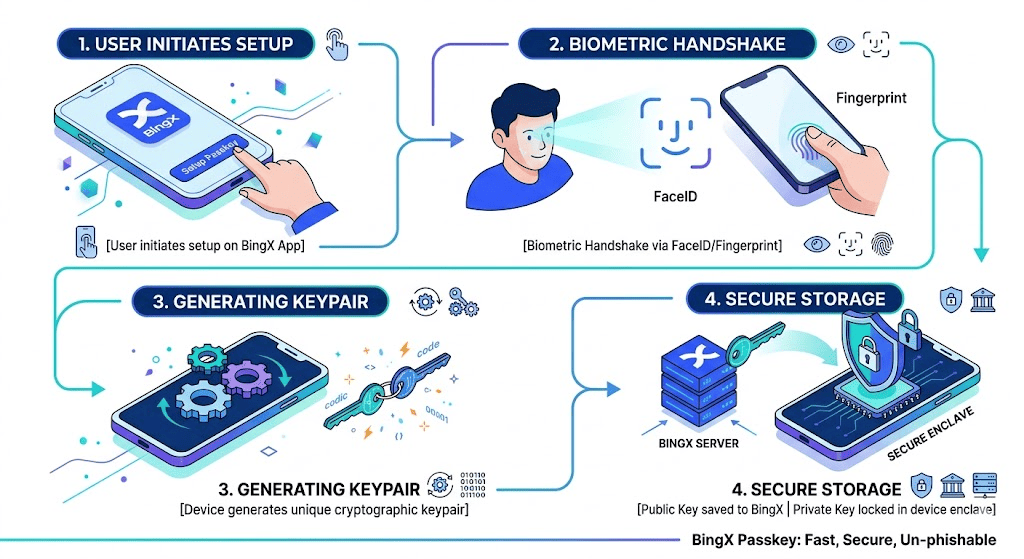
Once your login password is secure, you can activate passkeys to streamline verification and reduce reliance on typed credentials. Before starting, link at least two of email, phone and Google Authenticator. Use the latest BingX app on a compatible device; the current guide lists iOS 16+ and Android 9+.
The following screenshots illustrate the app setup flow; labels may vary by version. For the latest instructions, see the BingX Passkey Feature Guide.
How to Activate a BingX Passkey on BingX App: A Step-by-Step Guide
- Step 1: Open the BingX Mobile App. Ensure you are updated to version V4.11.0 or later on iOS 16+ or Android 9+.
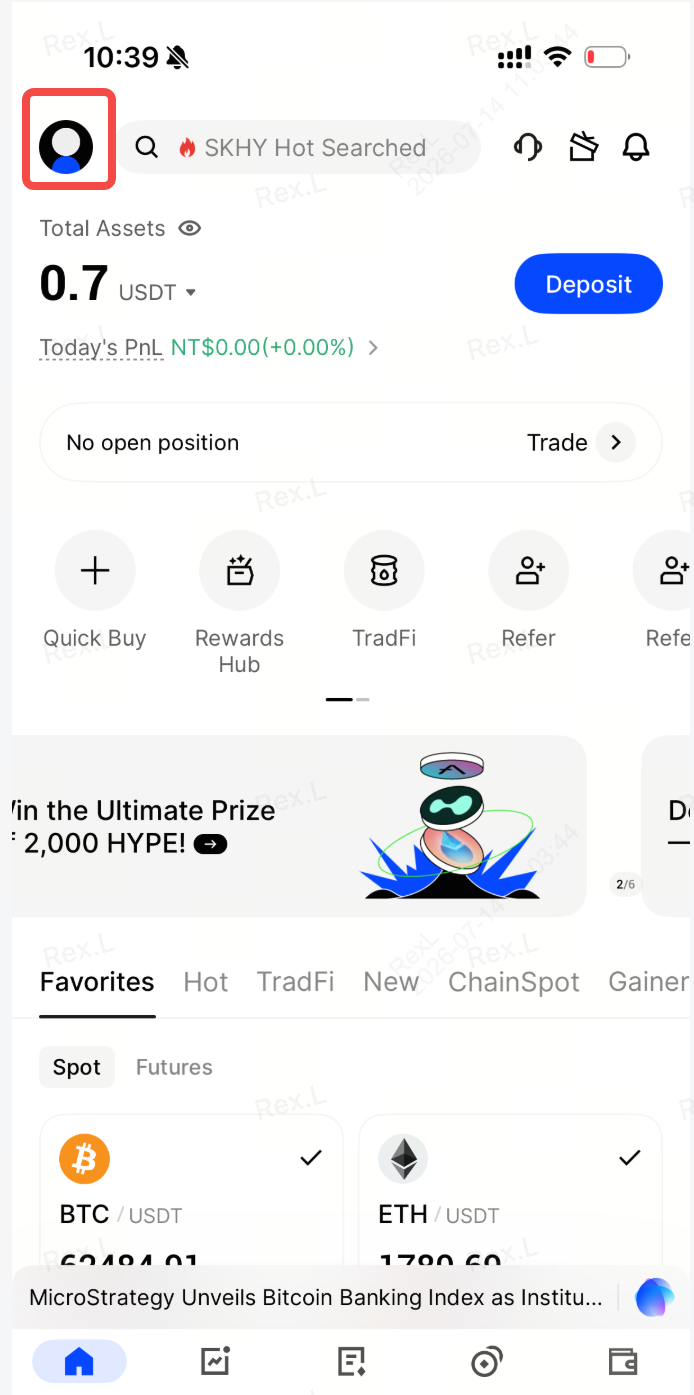
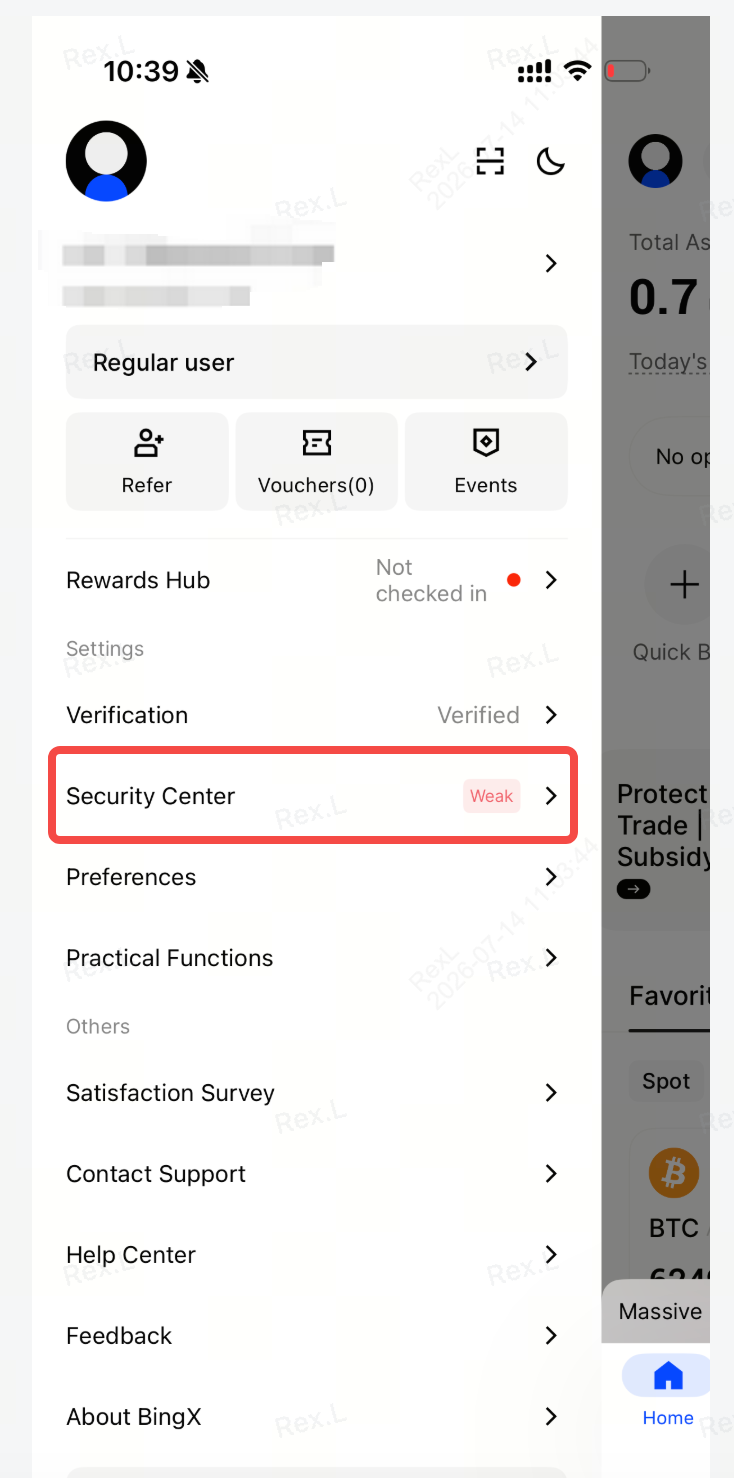
- Step 2: Open Security Center. Tap the Avatar Icon in the upper-left corner to reveal the sidebar menu and select Security Center. Locate the Passkeys option at the top of the interface.
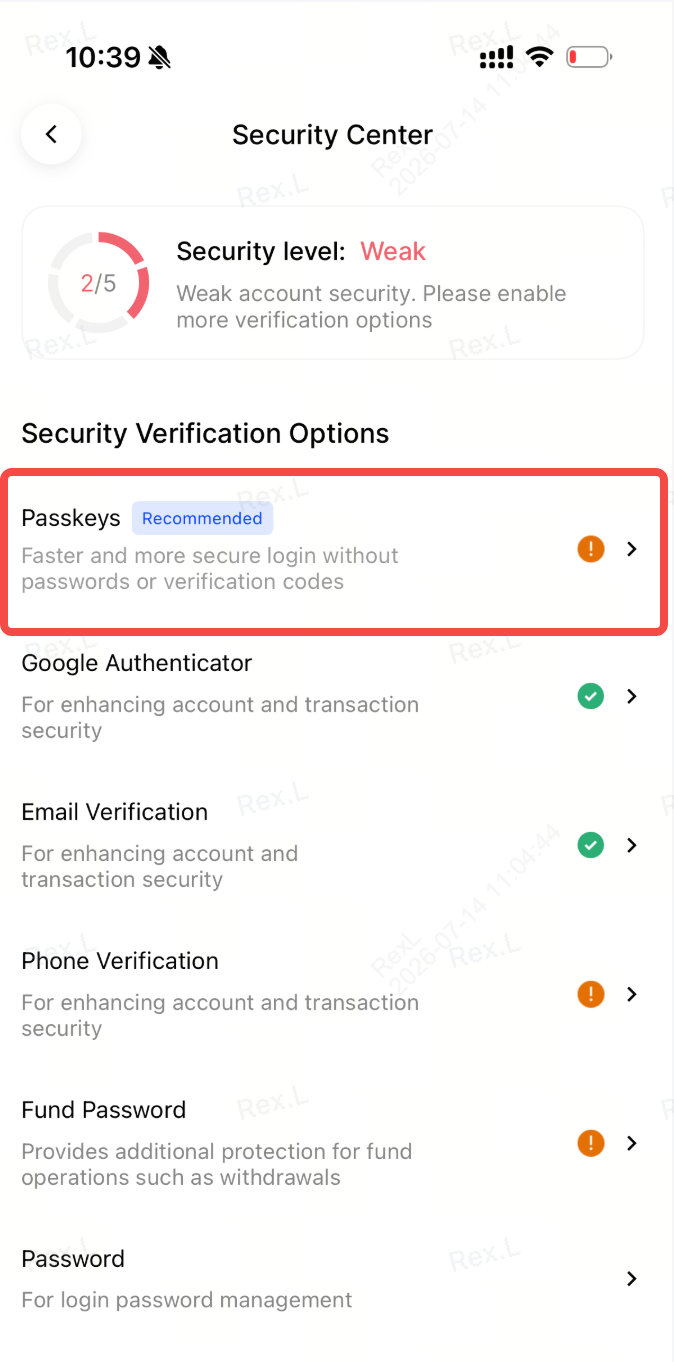
- Step 3: Add a Passkey. Open Passkeys, choose Add Passkey, and complete the existing account verification requested.
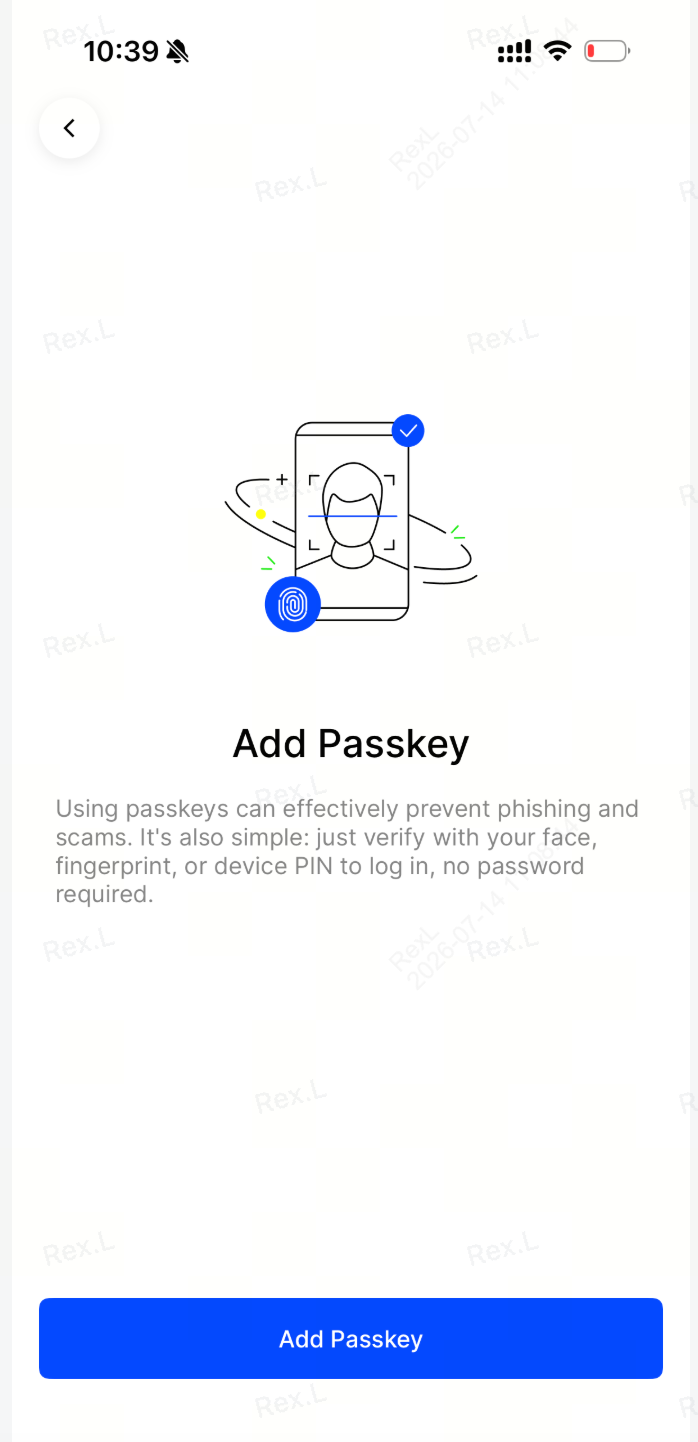
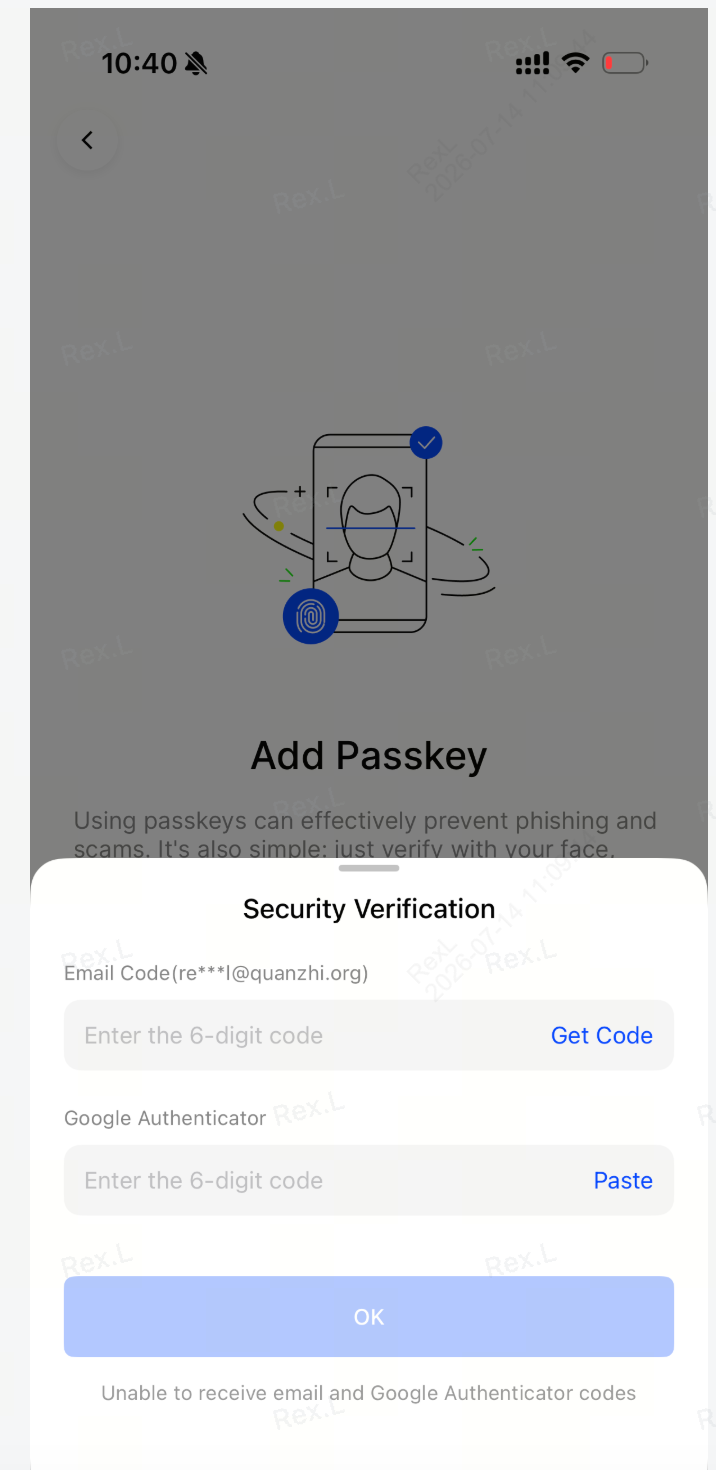
- Step 4: Save and Authenticate. Complete the native system prompt using your phone's biometric module, e.g., FaceID, TouchID, or fingerprint sensor.
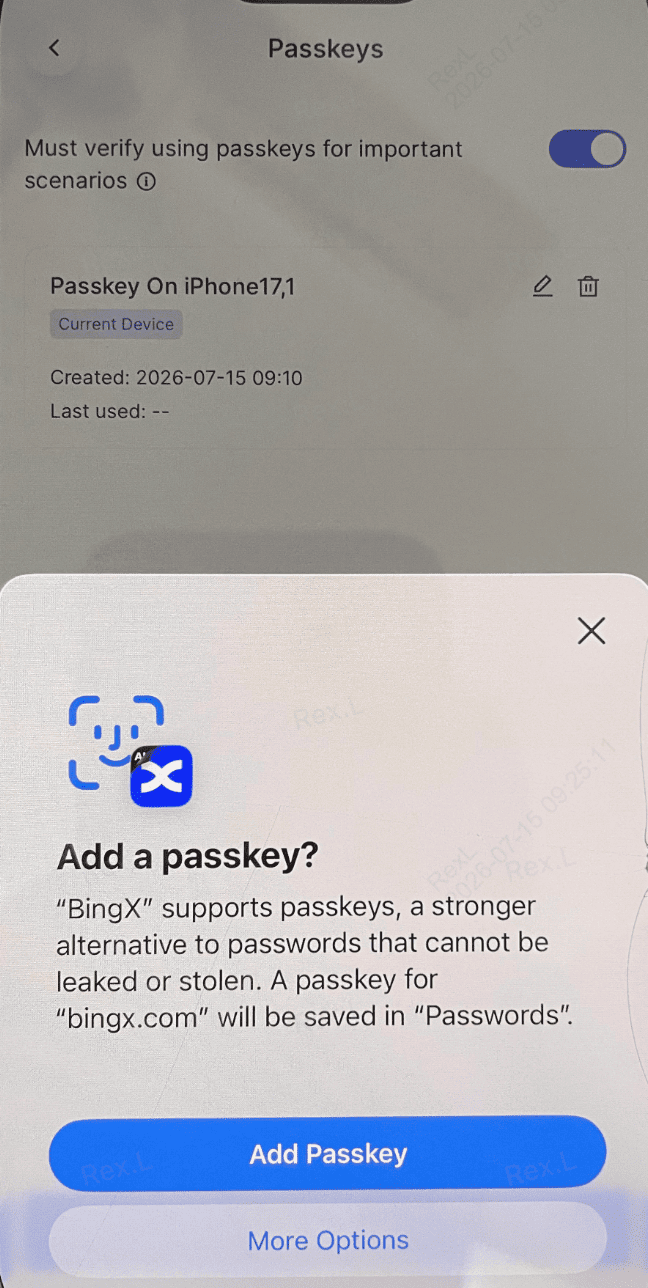
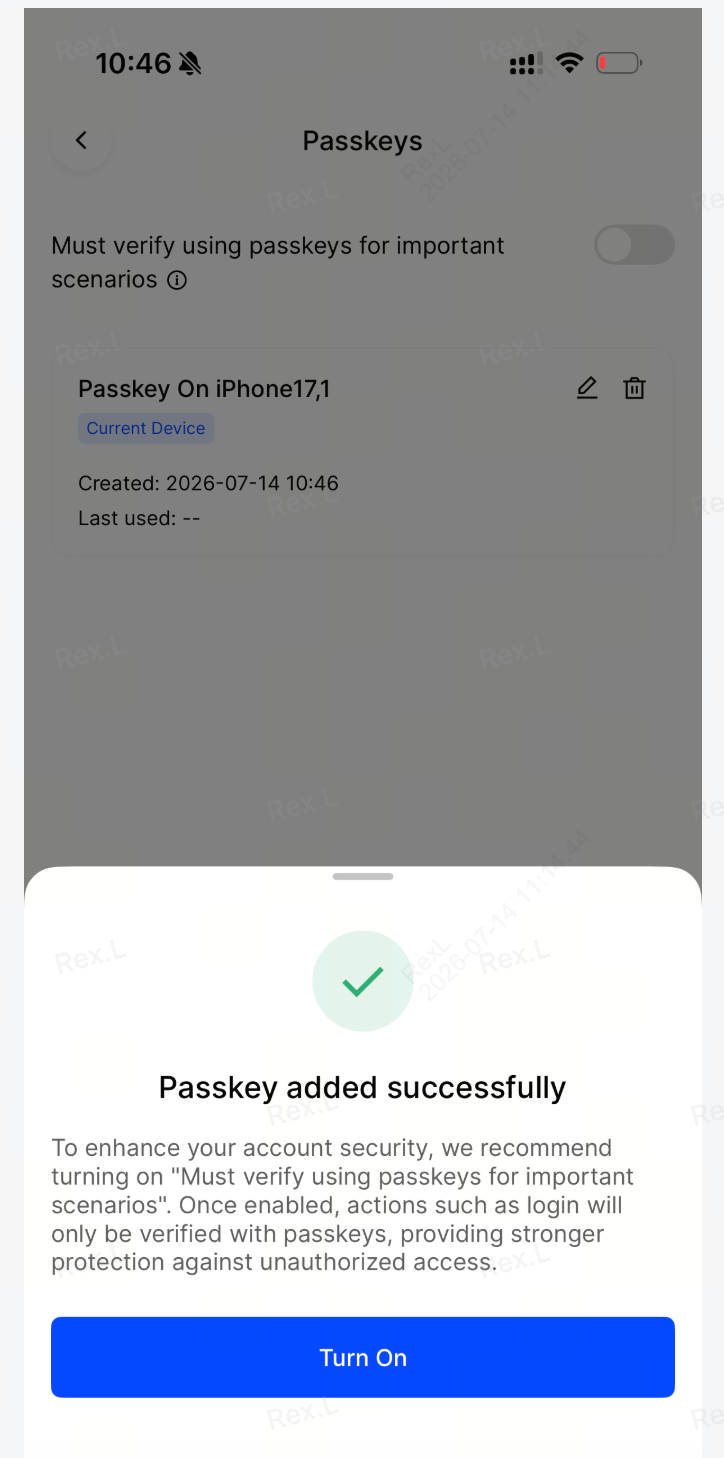
- Step 5: Confirm the Setup. Select your device's native system password manager, e.g., Apple Keychain or Google Password Manager, as the secure storage repository to synchronize the public credential securely.
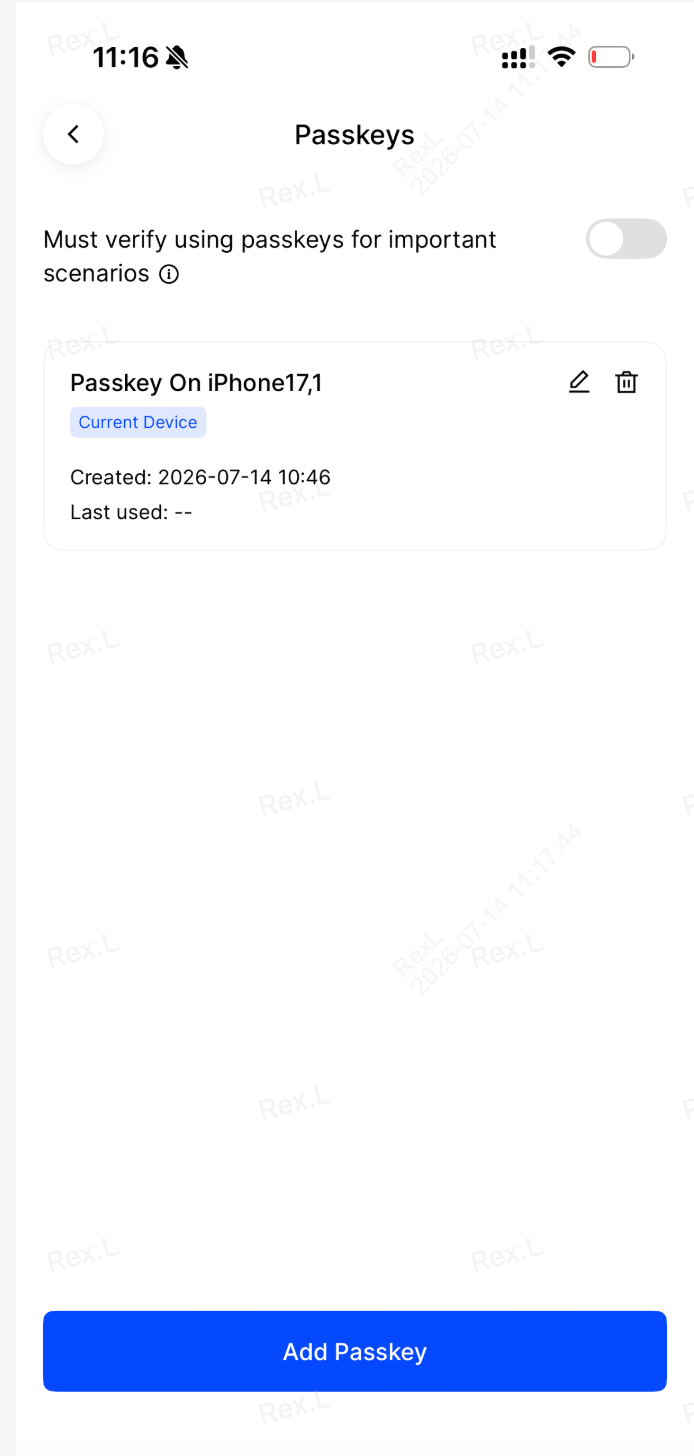
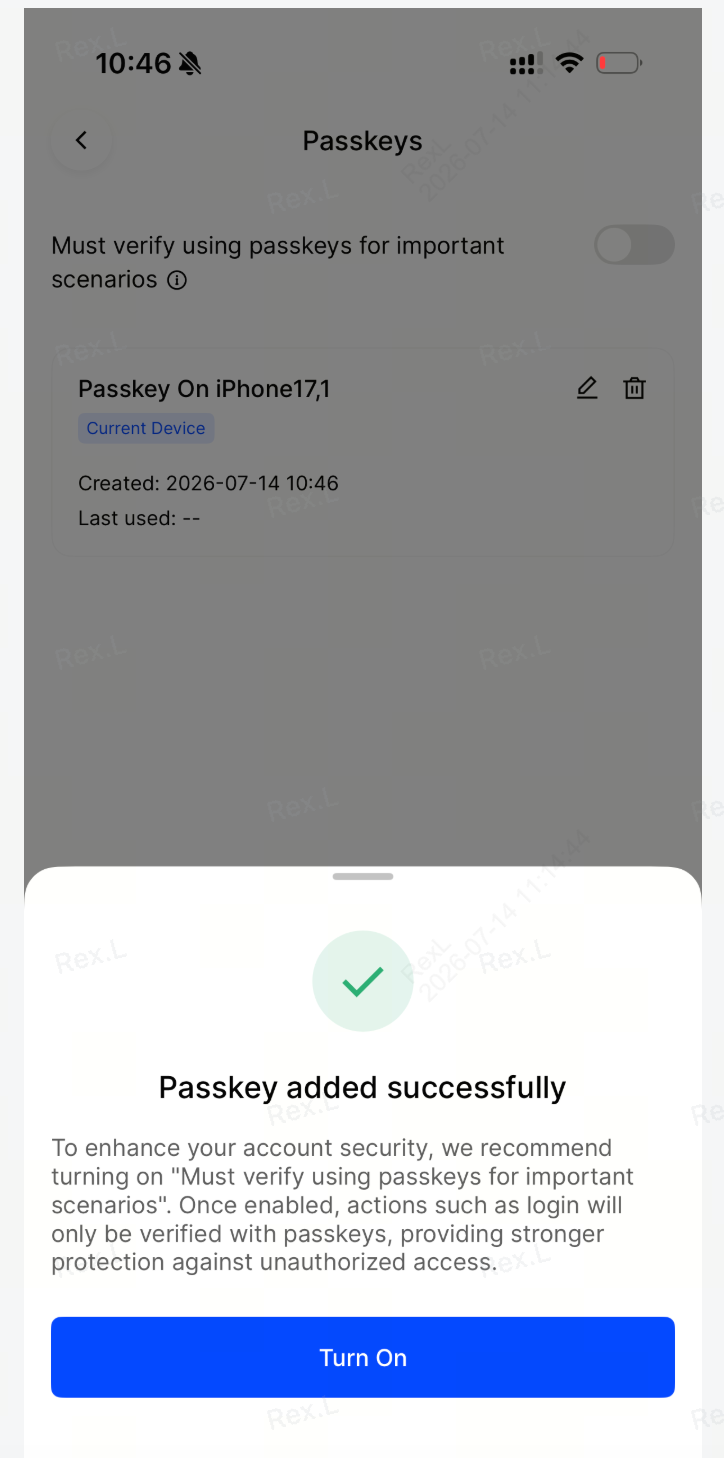
- Step 6: Enable Mandatory Passkey Verification. (Optional) In your BingX security settings, enable "Must verify using passkeys for important scenarios" to require passkey authentication for sensitive account actions. This adds stronger protection against unauthorized access by requiring verification through your registered passkey.
How to Activate a BingX Passkey on the Website: A Step-by-Step Guide
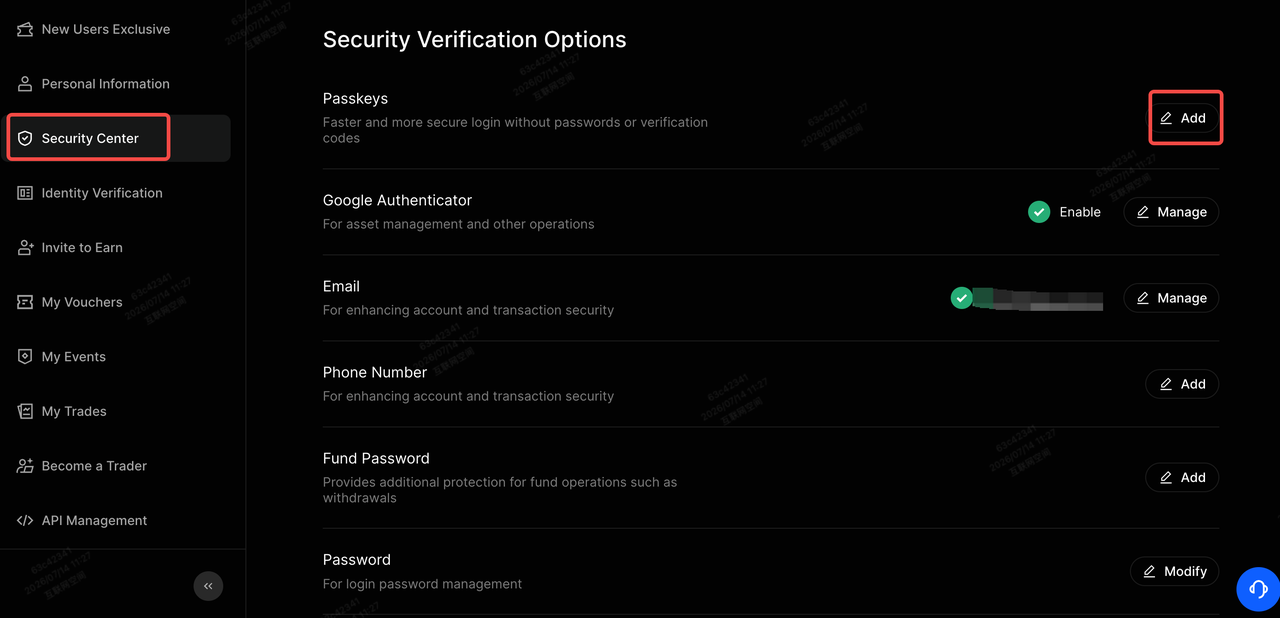
To set up a passkey on the BingX website, open "Security Center" from your profile menu and select "Add" beside Passkeys. Complete any required identity verification, follow your browser's instructions, and choose where to securely save your passkey. For the most up-to-date instructions and screenshots, refer to our BingX Passkey Setup Guide.
5 Key Benefits of Passkey Integration on BingX
Integrating passkeys into your BingX account combines advanced asset protection with faster, more convenient authentication.
- Faster Transaction Verification: Passkeys can accelerate withdrawal verification by reducing the time spent entering codes, without relying on network-dependent SMS or email delivery.
- Verification Code-Free Withdrawals: For eligible transactions, passkeys remove the need to manually enter 6-digit verification codes, allowing you to skip checking separate SMS channels or email inboxes.
- Hardware-Backed Biometric Security: Uses your device's native Face ID or fingerprint recognition to unlock securely stored cryptographic credentials, making unauthorized remote access significantly harder.
- Phishing-Resistant Authentication: Relies on FIDO-standard cryptographic key pairs rather than reusable passwords, providing stronger protection against credential theft, phishing websites, and account impersonation.
- Additional Security Checks for Unusual Activity: BingX may require traditional multi-factor verification for large transfers or transactions flagged by its risk controls, providing additional safeguards when unusual account activity is detected.
Note: For account safety, BingX may disable verification code-free withdrawals for large transfers or when unusual activity triggers additional security checks.
Final Thoughts: Proactive Account Protection With Strong Passwords and Passkeys
Protecting your digital assets starts with strong, proactive security habits. By combining unique passwords stored in an encrypted password manager with biometric passkeys, you can significantly reduce the risk of unauthorized access to your BingX account while making everyday verification faster and more convenient.
For long-term protection, regularly review your security settings and secure the devices and accounts that store your credentials. Keep your screen lock enabled, protect cloud accounts used to sync passkeys, and maintain reliable recovery options. These practices help you manage your digital assets with greater confidence.
Security Reminder: Strong passwords and passkeys provide advanced protection against unauthorized access, but no security setup eliminates every risk. Stay alert to phishing attempts, keep your credentials private, and remember that account security does not protect against cryptocurrency market volatility or trading losses.
Related Reading
- BingX Security Upgrade | Passkey Feature Guide
- Top Tips and Practices to Secure Your BingX Account (2026)
- What Are the Top AI Crypto Scams of 2026 and How to Stay Safe?
- Top Social Engineering Crypto Scams in 2026 and How to Stay Safe
- Top Crypto Phishing Scams to Know and How to Spot Them in 2026
FAQs on Passkeys and Password Security
1. Does BingX Support Passkeys?
Yes. BingX supports FIDO-standard passkeys for faster, more secure logins and other supported account security checks. You can create a passkey through the BingX app or a compatible web browser using your device's biometric authentication.
2. How Do I Set Up a BingX Passkey?
Open "Security Center > Passkeys" on BingX and select "Add" to begin setup. Complete the required identity verification, follow your device's instructions to save the passkey, and confirm that it appears in your linked passkey list.
3. What Happens if I Lose My Phone Containing My BingX Passkey?
If your passkey is synced through Apple iCloud Keychain or Google Password Manager, you can restore access on a new device by signing in to the same account and completing the required verification. If your passkey is device-bound or you lose access entirely, select "Unavailable verification options?" where available or contact BingX Support to initiate account recovery.
4. Why Are H5 and Third-Party Logins Restricted After I Enable Mandatory Passkeys?
Enabling "Must verify using passkeys for important scenarios" may restrict H5 mobile web access or third-party login methods that cannot complete passkey verification. These safeguards help prevent unauthorized users from bypassing your registered passkey through alternative login channels.
5. Does Setting Up a Passkey Completely Remove My Fund Password?
No. Passkeys support secure logins and verification for eligible account actions, while the Fund Password remains a separate transaction security feature where applicable. Enabling a passkey does not automatically remove your Fund Password, and additional verification may still be required for certain withdrawals.
